 Telegram
 WhatsApp
 Discord
 ask@voicehotkey.com


Custom prompts on Android
A custom prompt is your own instruction for the AI: “Rewrite as a polite reply to a customer”, “Turn this into a short bullet list”, “Translate into Spanish and keep it casual”. Save as many as you like. Each one gets its own 🎨 button in the mic’s AI menu, so you speak first and pick what the AI should do with your words.
Several custom prompts arrived in VoiceHotKey 6.0 for Android; update the app from Google Play if you only see one. If you had a custom prompt before, it is kept as your first one. Like the other AI actions, custom prompts need an active plan.
1. Open Custom Prompts#
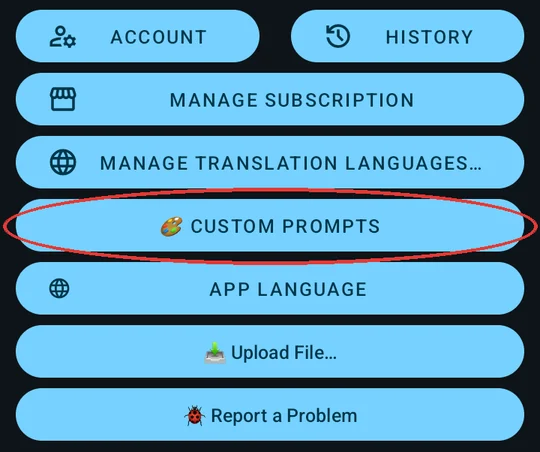
Open VoiceHotKey & scroll down the main screen to the buttons. Tap 🎨 Custom Prompts.
2. Add your prompts#
Each card is one prompt. Type a short Title: it becomes the name of the button in the mic’s menu. Below it, write the prompt itself, the instruction the AI follows. Everything is saved as you type.
Tap Add Prompt for another card. There is no limit. A prompt without a title is shown by its first line.
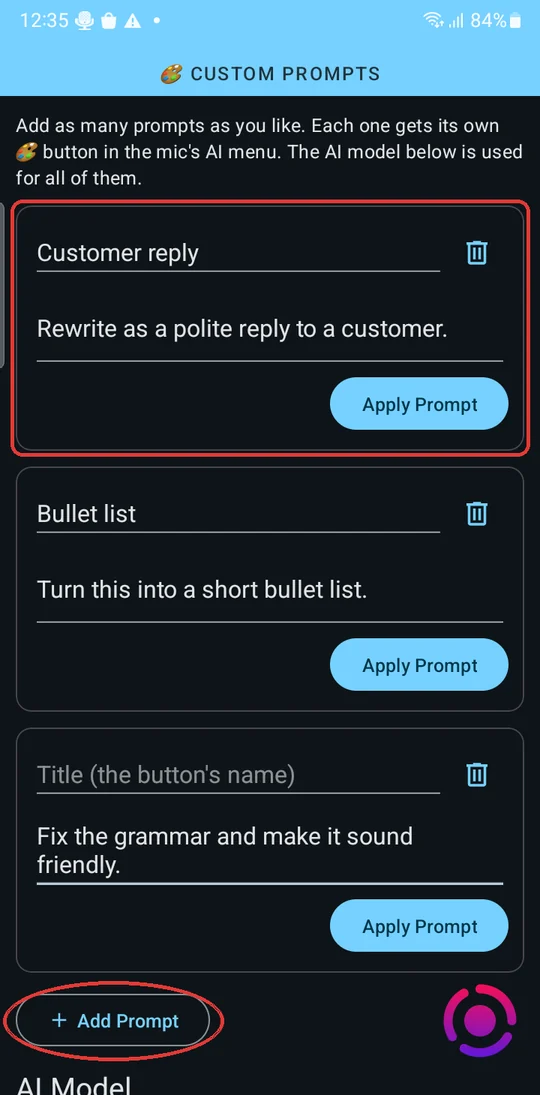
The AI Model under the cards is used for all your prompts.
3. Pick a prompt while you dictate#
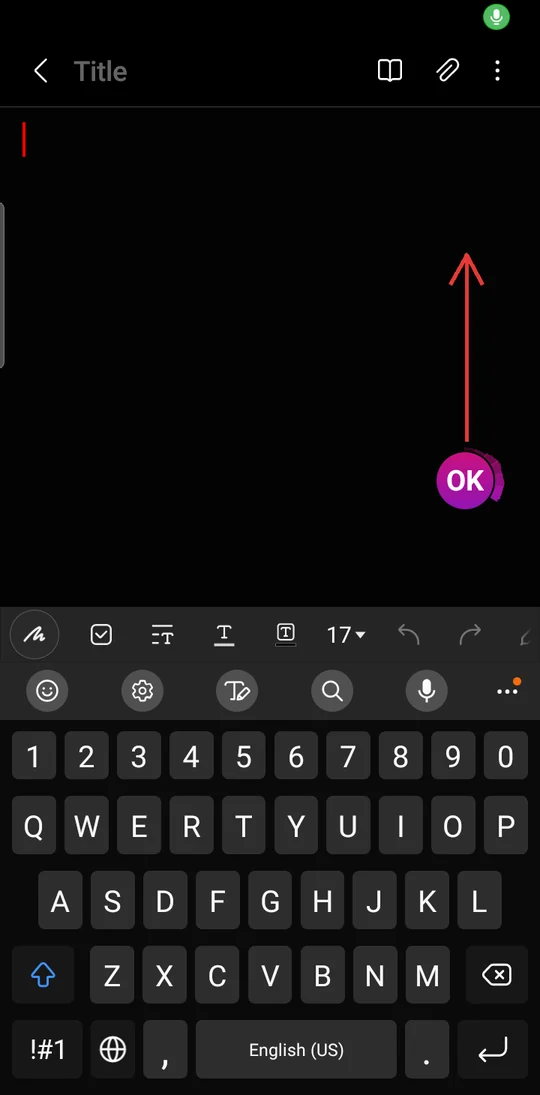
Tap the floating mic in any app & speak. While it shows OK it is recording. Swipe up from the mic to open the AI menu; the recording goes on while the menu is open.
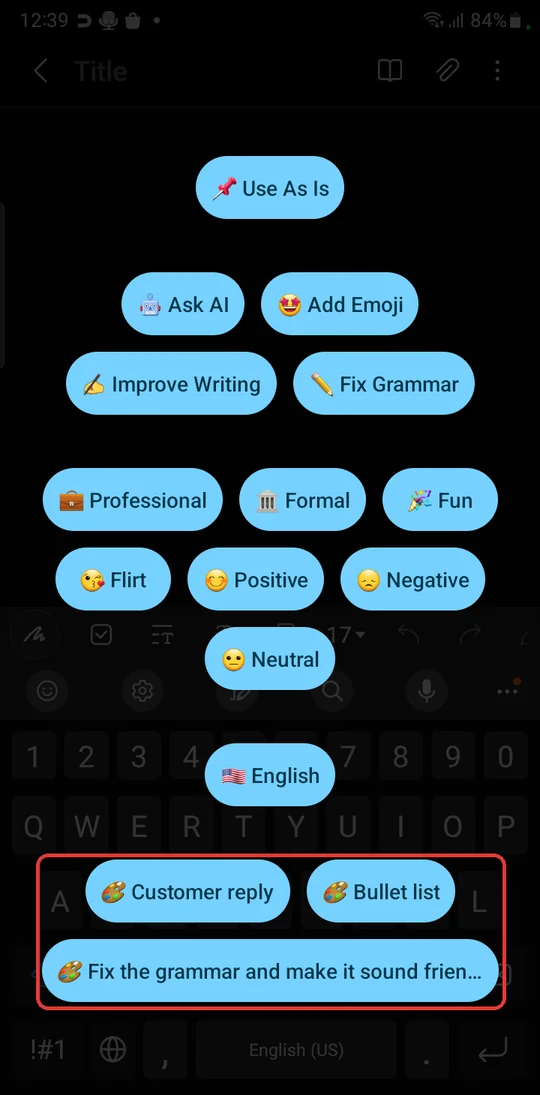
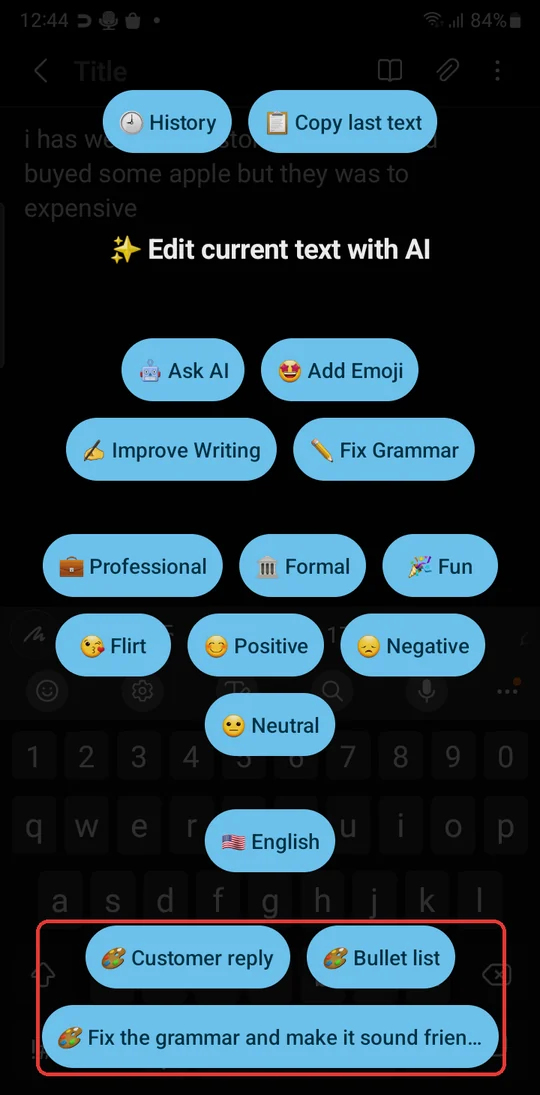
Your prompts are at the bottom of the menu, each with 🎨. Tap one: the recording stops and the AI rewrites what you said with that prompt.
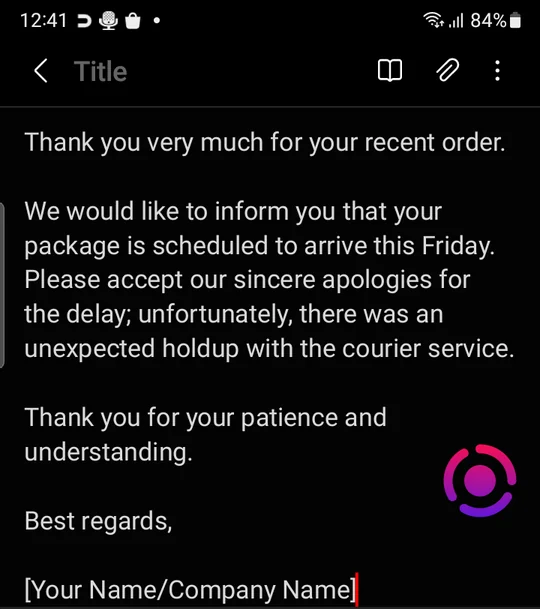
The result goes into the field you were typing in. Here “Hi John, thanks for your order, it will arrive on Friday, sorry about the delay” came back through 🎨 Customer reply:
To dictate without AI, tap the mic again to stop as usual, or pick 📌 Use As Is.
4. Repeat the last prompt with a swipe down#
Next time you want the same prompt, don’t open the menu: while recording, swipe down from the mic. The recording stops & what you picked last from the menu, your 🎨 prompt, is applied again.
5. Run a prompt on text you’ve already typed#
Put the cursor in a field that already has text, then press & hold the mic (without recording; this needs Tap to transcribe on, as it is by default) until the menu ✨ Edit current text with AI appears. Your 🎨 prompts are there too. Tap one & the AI rewrites the text in the field. If you selected part of the text, only that part is rewritten.
Some apps don’t let other apps change their text fields. There the result is copied instead: paste it where you need it.
6. Change or delete a prompt#
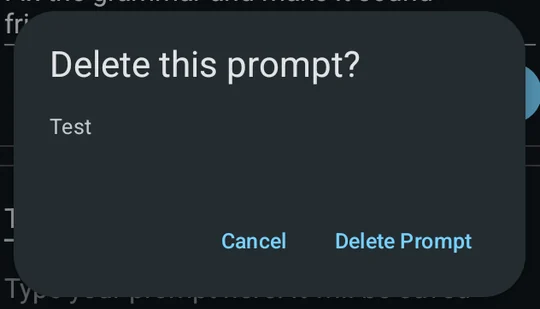
Open 🎨 Custom Prompts again & edit the title or the text: the change is saved at once & the menu shows the new name. To remove a prompt, tap its 🗑 icon & confirm with Delete Prompt.
Apply Prompt on a card picks that prompt without dictating: when your last pick from the menu was a 🎨 prompt, the next swipe down uses this one.


