 Telegram
 WhatsApp
 Discord
 ask@voicehotkey.com
 Download for Mac




Install & use VoiceHotKey on Mac
VoiceHotKey on Mac lets you type with your voice in any app. Press one key, speak, press it again & the transcribed text appears where your cursor is: Mail, Slack, Telegram, WhatsApp, Notes, Word, Google Docs, a code editor, a browser form, anywhere you can type.
The first-time setup takes about three minutes: download, drag the app into Applications, allow two permissions, then sign in by email.
VoiceHotKey runs on macOS 12.4 or later, on Apple silicon (M1 and newer) & on Intel Macs.
1. Download from the website
Open voicehotkey.com on your Mac & click Download for Mac.
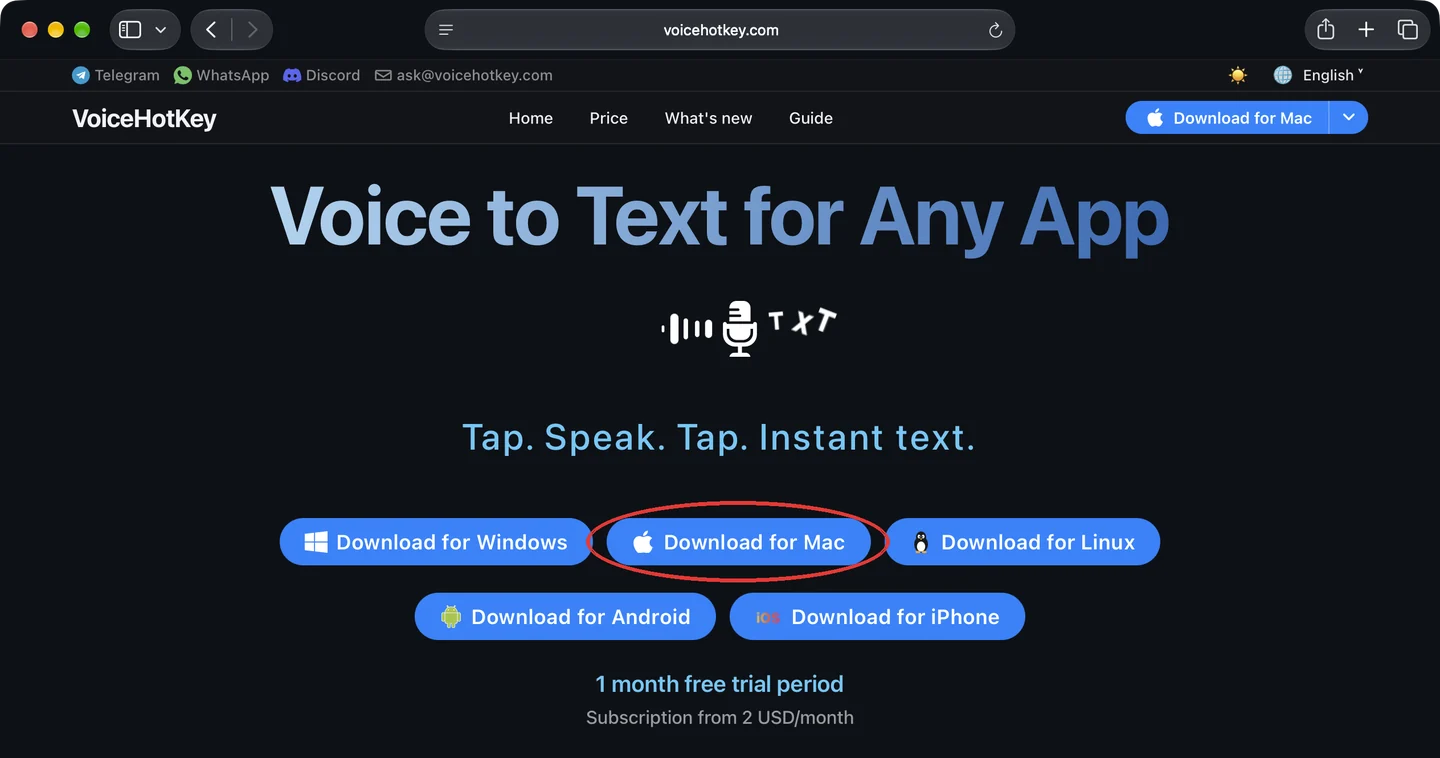
Safari downloads VoiceHotKey.dmg (about 6 MB) into your Downloads folder. If Safari asks Do you want to allow downloads on “voicehotkey.com”?, click Allow. Click the download arrow in the Safari toolbar, then double-click VoiceHotKey.dmg to open it.

2. Drag VoiceHotKey into Applications
A window opens with the VoiceHotKey icon & your Applications folder. Drag the VoiceHotKey icon onto the Applications folder. The copy takes a second.
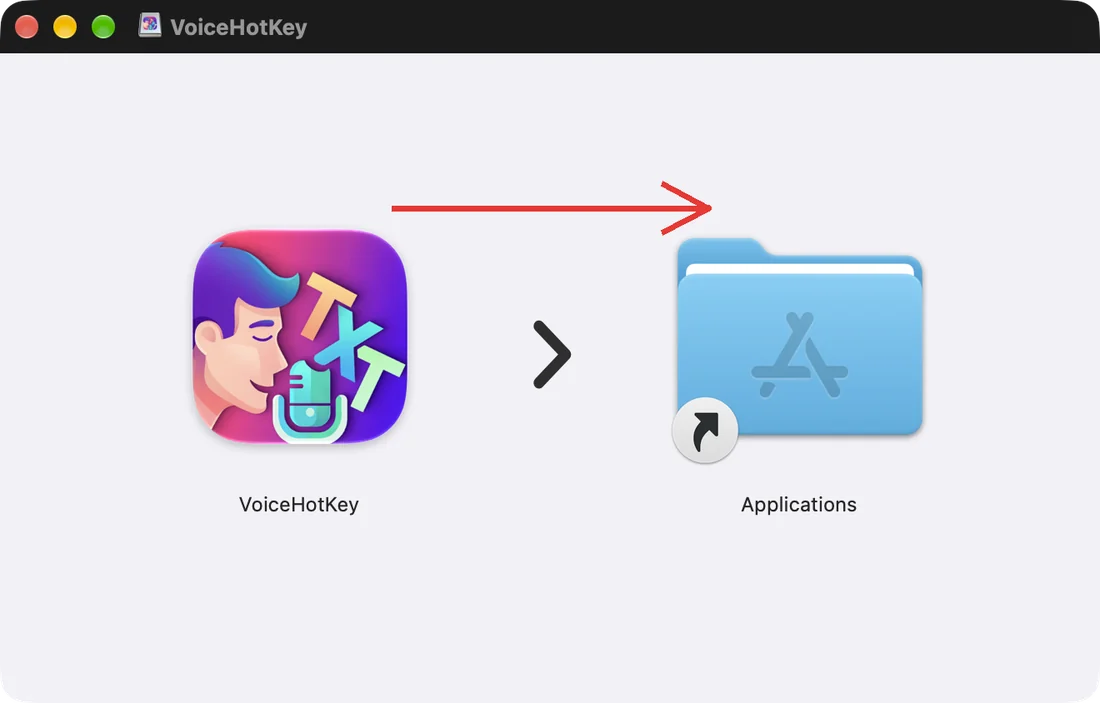
Always start VoiceHotKey from the Applications folder, not from the disk image. Once it’s copied, you can eject the VoiceHotKey disk in the Finder sidebar.
3. Open VoiceHotKey for the first time
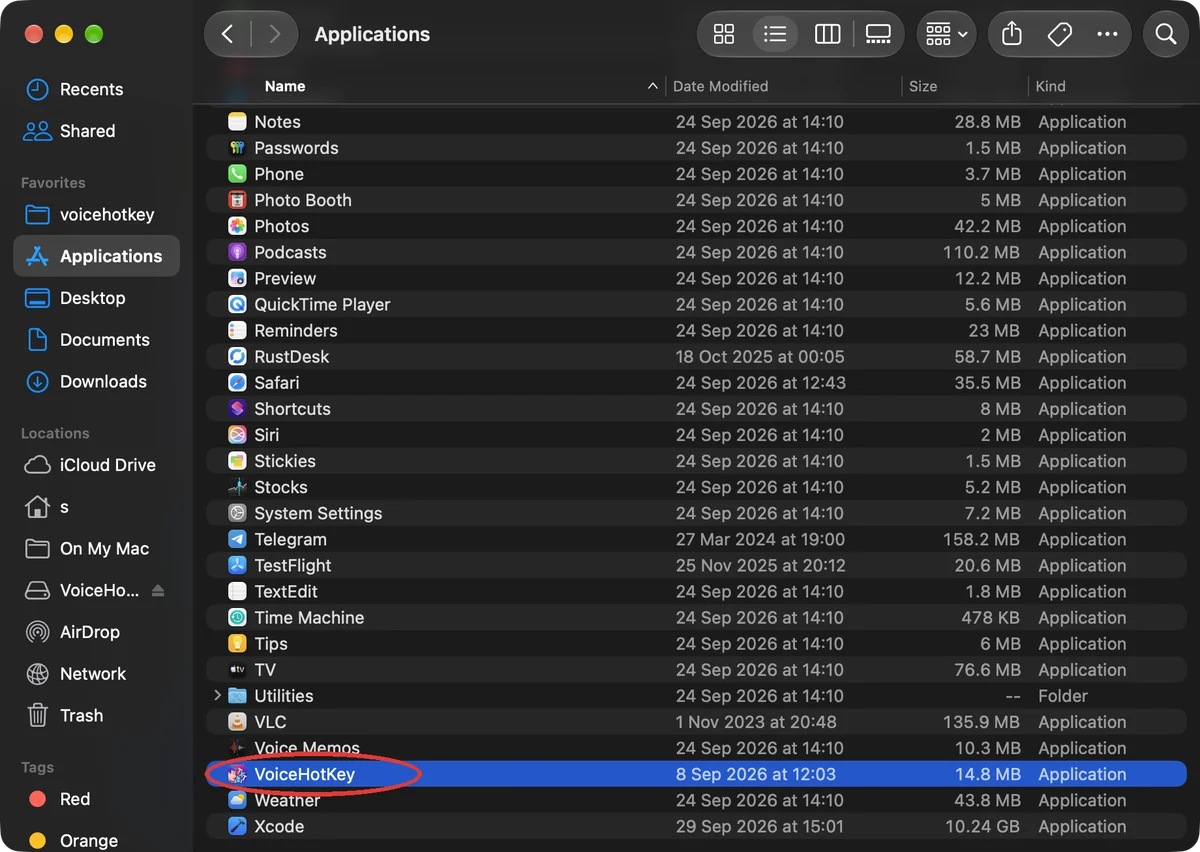
Open Finder → Applications & double-click VoiceHotKey.
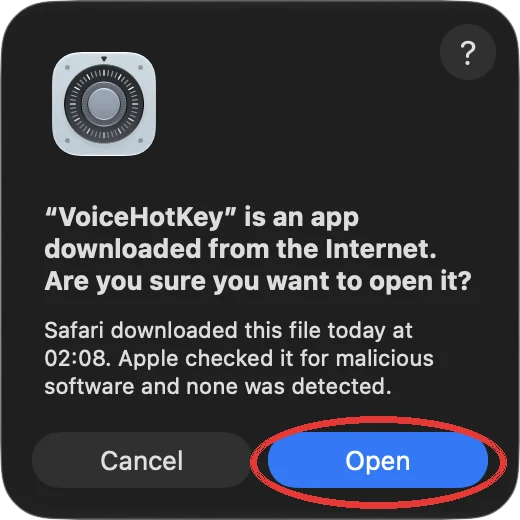
macOS asks whether you want to open an app downloaded from the Internet. VoiceHotKey is signed & notarized by Apple: the dialog says Apple checked it for malicious software & found none. Click Open.
VoiceHotKey opens its main window & adds its icon to the menu bar. macOS also shows a Login Item Added notification: VoiceHotKey starts automatically when you log in, so your dictation key always works. You can turn this off later in VoiceHotKey’s Settings → Open at Login.
4. Allow microphone access
The main window shows two red notices with Continue buttons. Handle them from top to bottom: microphone first, then accessibility.
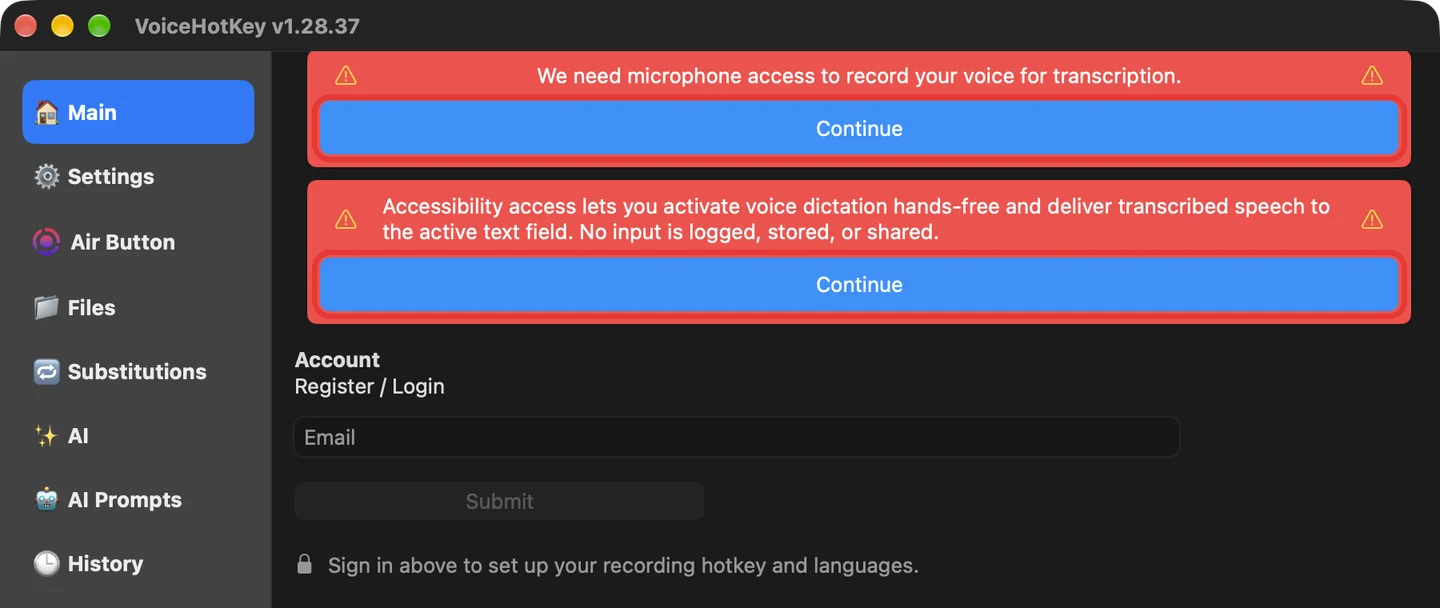
Click Continue under We need microphone access to record your voice for transcription. macOS asks for permission, click Allow.
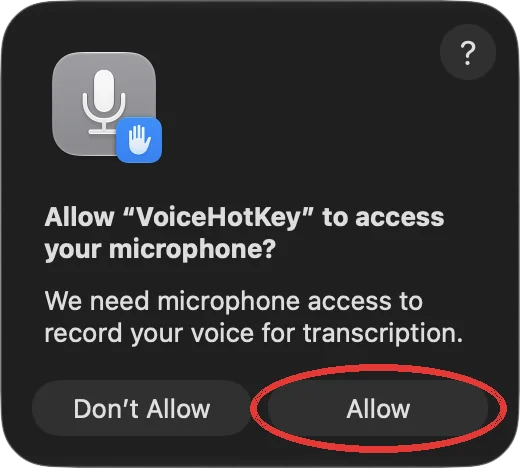
The microphone notice disappears.
5. Allow accessibility access
Accessibility access lets VoiceHotKey react to your dictation key in every app & paste the transcribed text into the field you’re typing in. No input is logged, stored, or shared.
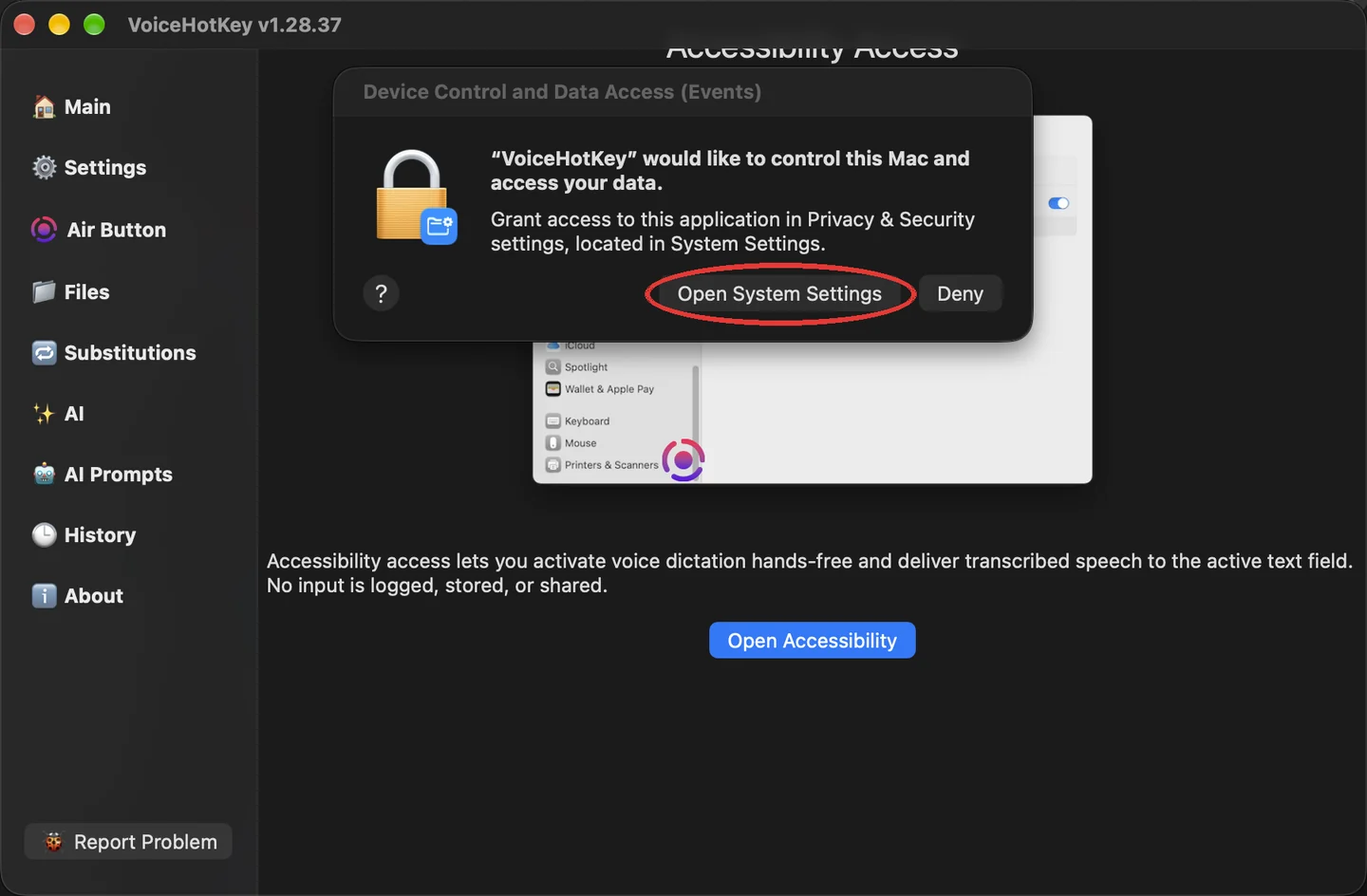
Click Continue under the accessibility notice. VoiceHotKey shows where the switch is, & macOS asks “VoiceHotKey” would like to control this Mac and access your data. Click Open System Settings.
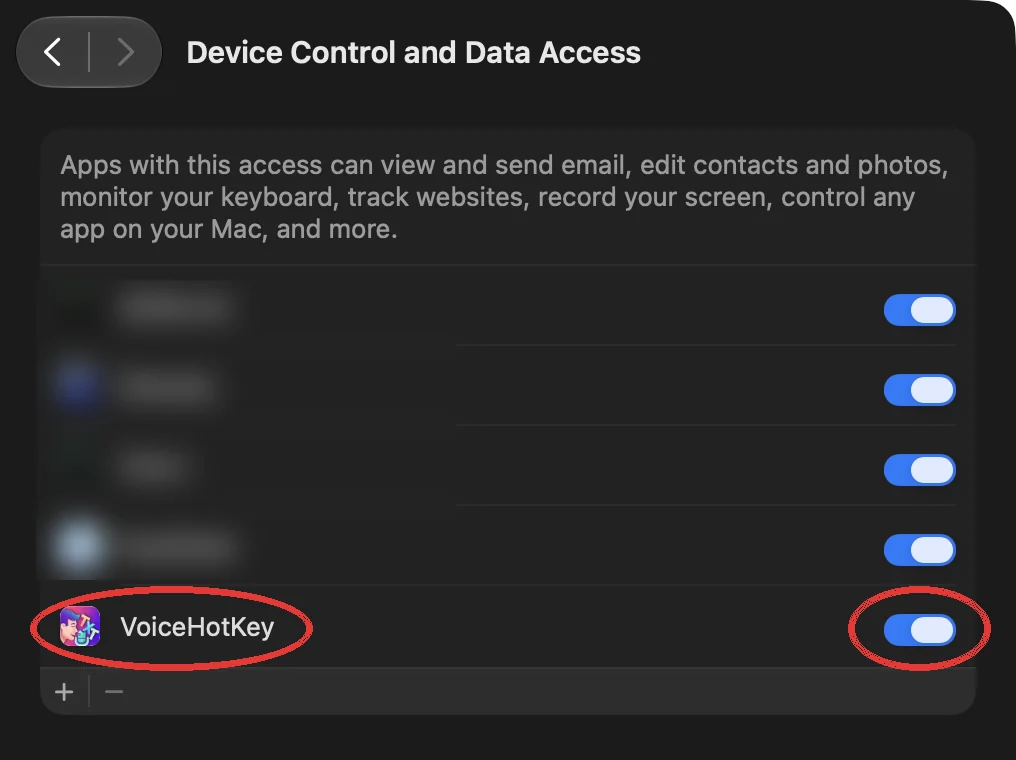
System Settings opens on the right page. Turn on the switch next to VoiceHotKey. On macOS 27 the page is called Device Control and Data Access; on earlier versions it’s Privacy & Security → Accessibility.
macOS asks for your Mac’s login password to confirm the change. Enter it & click Modify Settings.
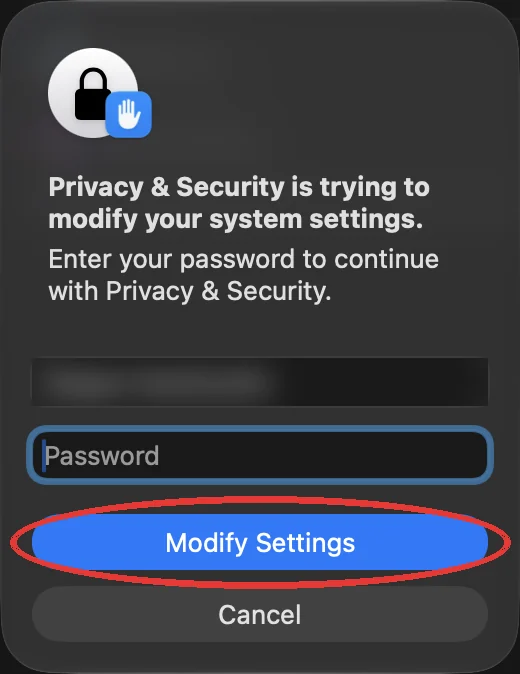
Switch back to the VoiceHotKey window: both red notices are gone.
6. Sign in with your email
On the Main tab, type your email address under Register / Login & click Submit. The same form creates a new account & signs in to an existing one. A new account starts with a one-month free trial.
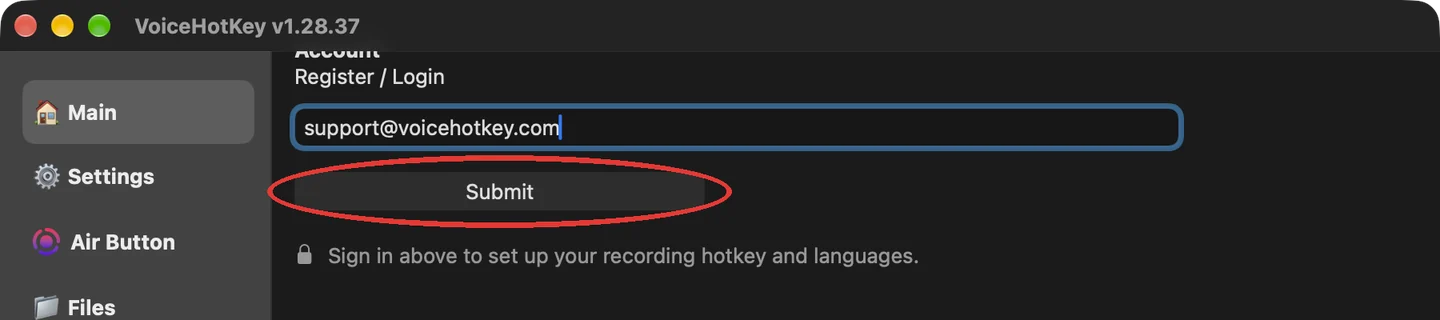
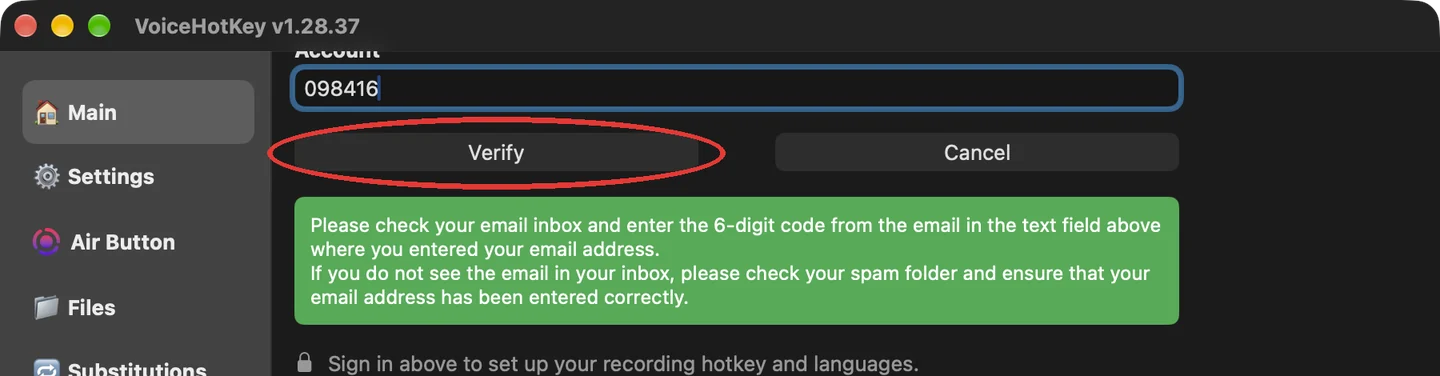
A 6-digit code arrives in your inbox within a few seconds. The code field is already selected: type or paste the code & click Verify. If the email doesn’t come, check your spam folder & make sure the address is spelled correctly.
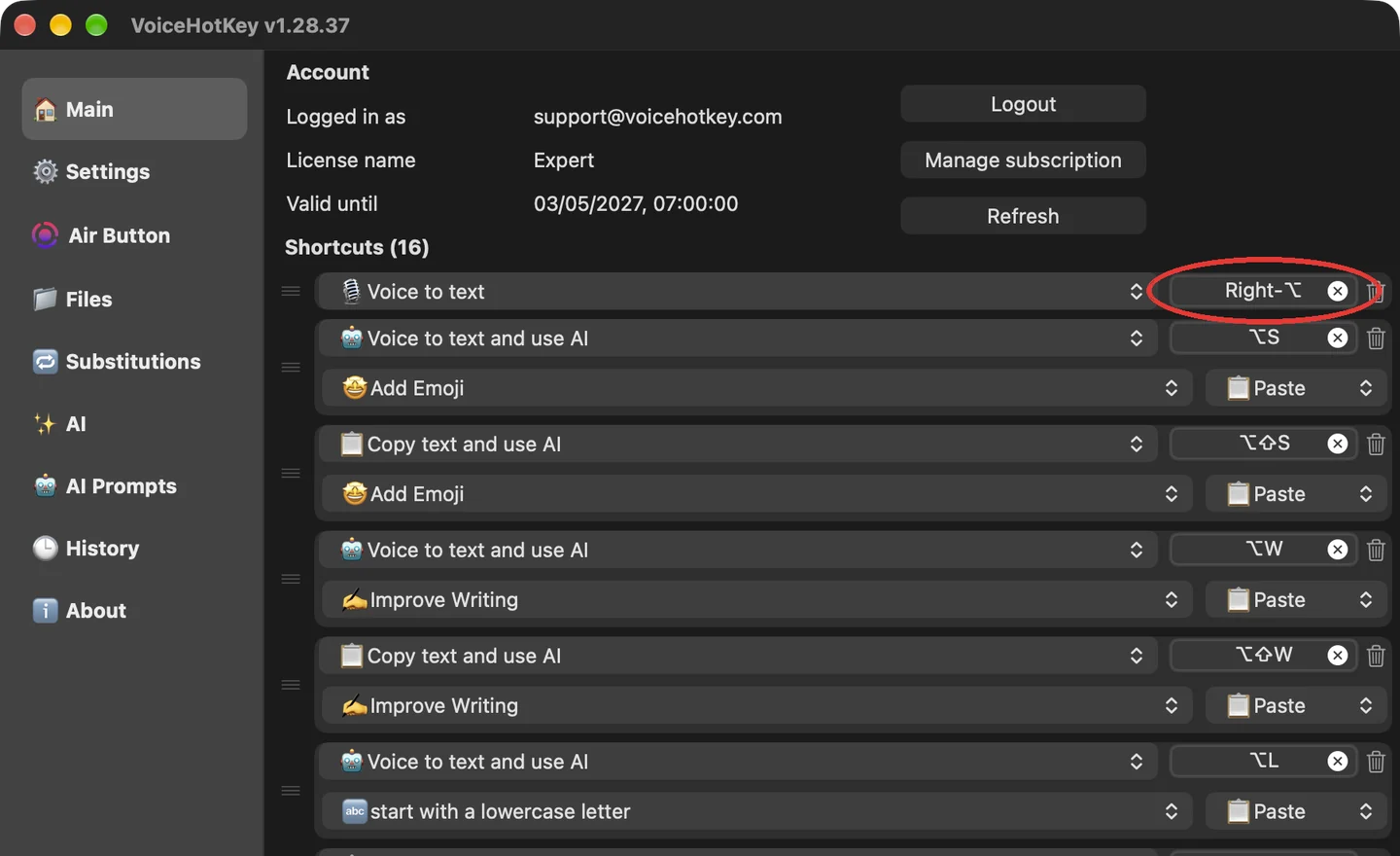
Once you’re signed in, the Main tab shows your account & your shortcuts. The first one, Voice to text, is the dictation key: Right-⌥, the Option key to the right of the space bar.
7. Pick your dictation languages
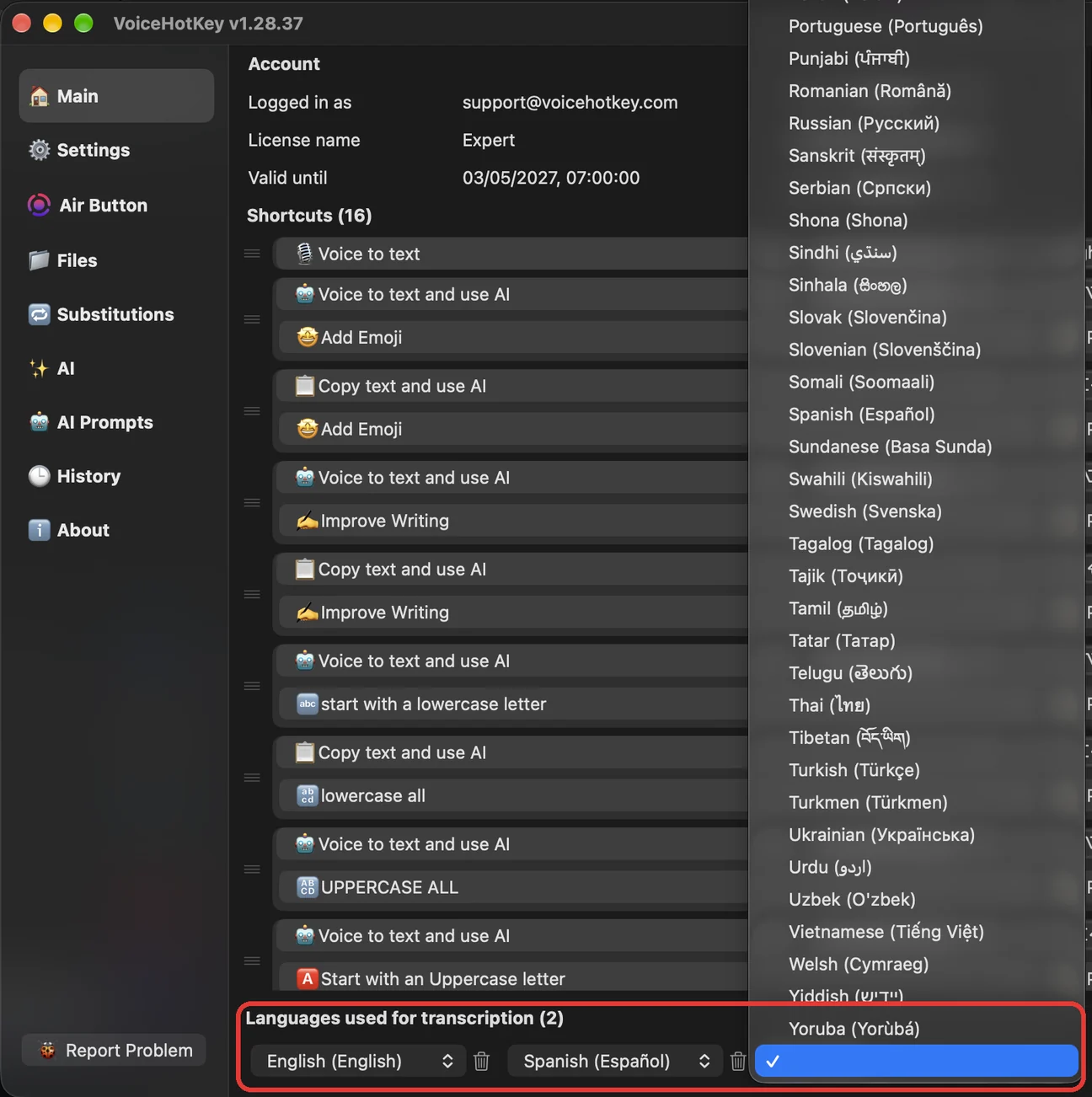
Before you dictate for the first time, add the languages you actually speak. The default is English only: if you speak another language without adding it, the transcription may come out in English.
At the bottom of the Main tab, under Languages used for transcription, click the empty box next to the last language & pick another one from the list. Add as many as you need. VoiceHotKey detects which of them you’re speaking in each recording.
8. Dictate into any app
Click into any text field: a message, an email, a document. Then:
- Press & release Right-⌥ once. VoiceHotKey starts listening: the round Air Button on screen turns into a pink OK button with a sound ring, & macOS shows the orange microphone indicator in the menu bar.
- Speak naturally.
- Press Right-⌥ again (or click OK). A second later the text appears where your cursor is.
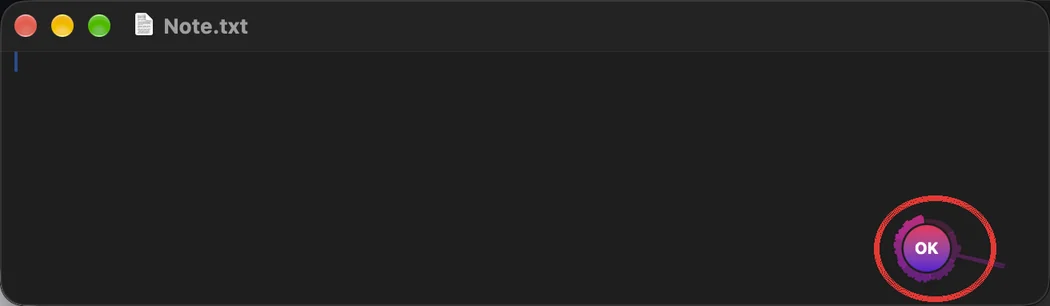

You don’t have to use the keyboard: clicking the Air Button starts a recording too, & clicking OK stops it. Drag the button anywhere on the screen; its size & transparency are on the Air Button tab.
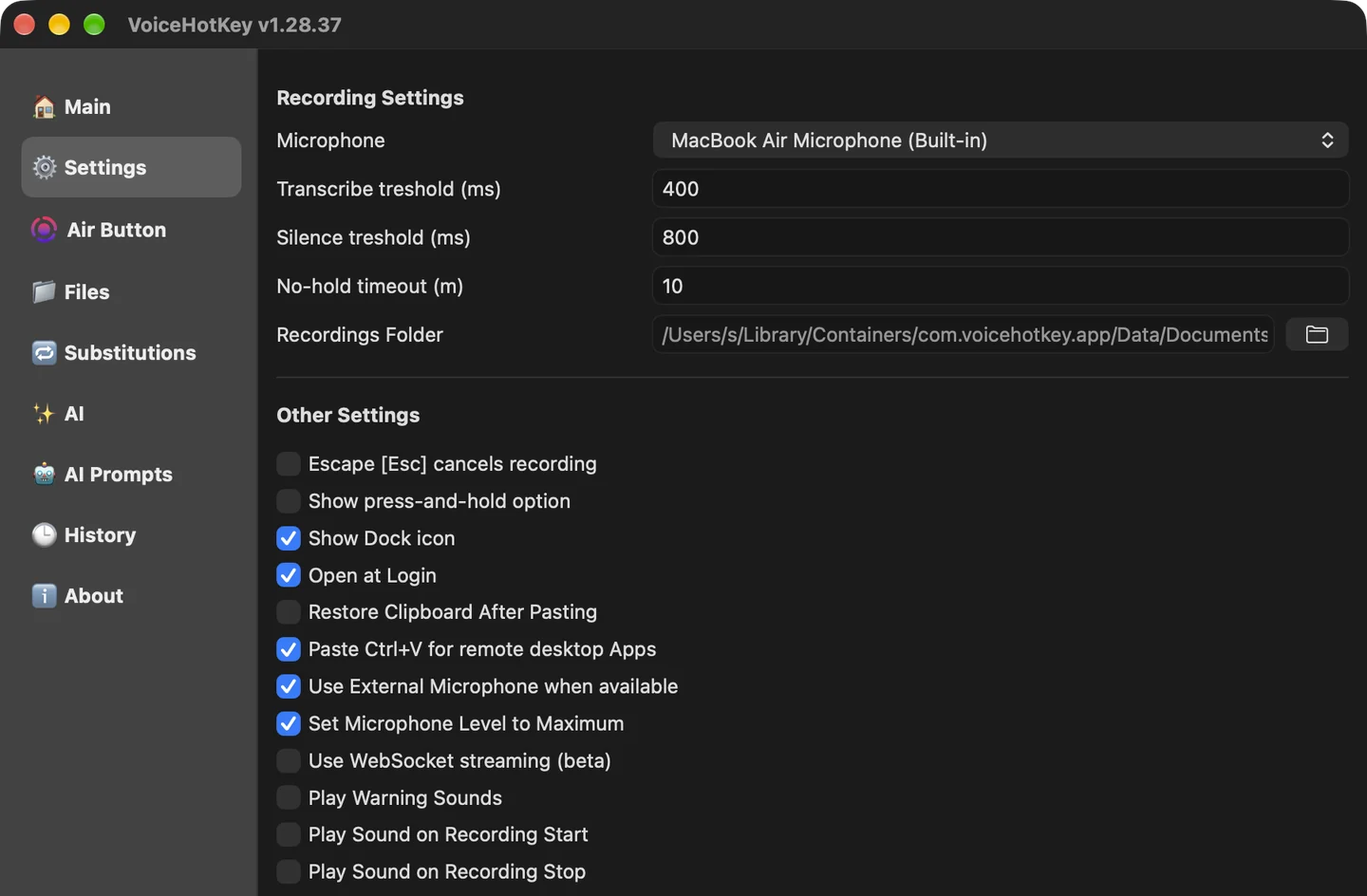
Prefer push-to-talk? On the Settings tab, turn on Show press-and-hold option. Each shortcut then gets a hold switch: hold the key while you speak, release it to stop.
9. Other settings
The other tabs of the main window:
- Main — all shortcuts. Besides plain dictation there are AI shortcuts, for example ⌥W dictates & improves the writing, ⌥S adds emoji, ⌥T dictates & translates, ⌥H opens the history. Click a shortcut box to record your own key.
- Settings — microphone, sounds at the start & end of a recording, Escape cancels recording, Open at Login, the Dock icon.
- Substitutions — words that should always be written your way, such as names & brands.
- AI & AI Prompts — run AI actions (improve writing, fix grammar, translate…) on any text, & edit the prompts behind them.
- History — every transcription, so a text is never lost.
10. Troubleshooting
- Nothing happens when I press Right-⌥. Accessibility access is off. Open System Settings → Privacy & Security → Accessibility (on macOS 27: Device Control and Data Access) & turn on VoiceHotKey. If it’s already on, turn it off & on again.
- The recording starts but no text appears. Microphone access is off, or the wrong microphone is selected. Check System Settings → Privacy & Security → Microphone, & the Microphone picker on VoiceHotKey’s Settings tab.
- The text comes out in the wrong language. Add your language under Languages used for transcription on the Main tab, & remove the ones you don’t speak.
- A name or a brand is always misspelled. Add it on the Substitutions tab.
- Subscription or login problems. Click Refresh on the Main tab. If it still misbehaves, click Report Problem at the bottom of the sidebar.
11. Uninstall
Quit VoiceHotKey (menu-bar icon → Quit), then drag VoiceHotKey from the Applications folder to the Trash. To remove its accessibility permission too, open System Settings → Privacy & Security → Accessibility, select VoiceHotKey & click −.