 Telegram
 WhatsApp
 Discord
 ask@voicehotkey.com
 Download for Windows


Send a problem report
If something in VoiceHotKey doesn’t work, send us a report from inside the app. Along with your message, the app sends its log and settings, so we can see what happened on your device. That gets the problem fixed much faster than a description alone.
Find your app below & follow the steps.
Mac#
- Open the VoiceHotKey window: click the VoiceHotKey icon in the menu bar, then ⚙️ Settings.
- Click 🐞 Report a Problem at the bottom of the sidebar.
- In Tell us about your problem, write what you did, what you expected & what happened instead. For example: I pressed Right-⌥ in Notes & spoke, but no text appeared.
- Optional: enter your phone number if you’d like us to contact you on WhatsApp or Telegram.
- Click Send.
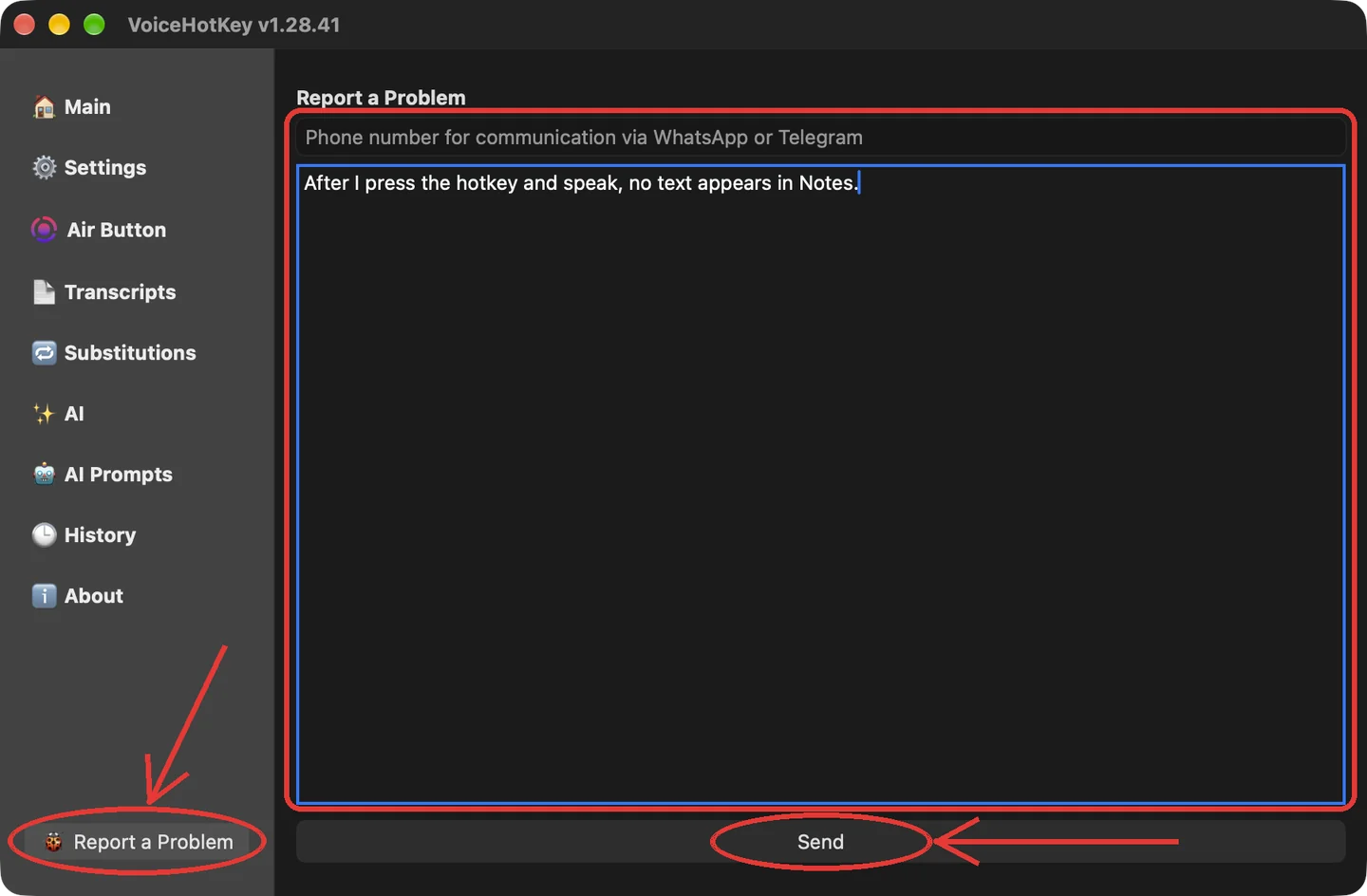
When the app says The report was sent!, click OK. The report has reached us. If it says The report failed to send, check your Internet connection & click Send again.
The report contains your message, your phone number if you entered one, your account email, the app & macOS versions, the app’s log & its settings. Your recordings aren’t attached.
Windows#
On Windows the app is called VoiceKey.
- Open the VoiceKey window: click the VoiceKey icon next to the clock on the taskbar (if you don’t see it, click the ^ arrow first), or open VoiceKey from the Start menu.
- Click 🐞 Report a Problem at the bottom of the sidebar.
- In Tell us about your problem, write what you did, what you expected & what happened instead. For example: I pressed my hotkey in Notepad & spoke, but no text appeared.
- Optional: enter your phone number in the field above it if you’d like us to contact you on WhatsApp or Telegram.
- Click Send report.
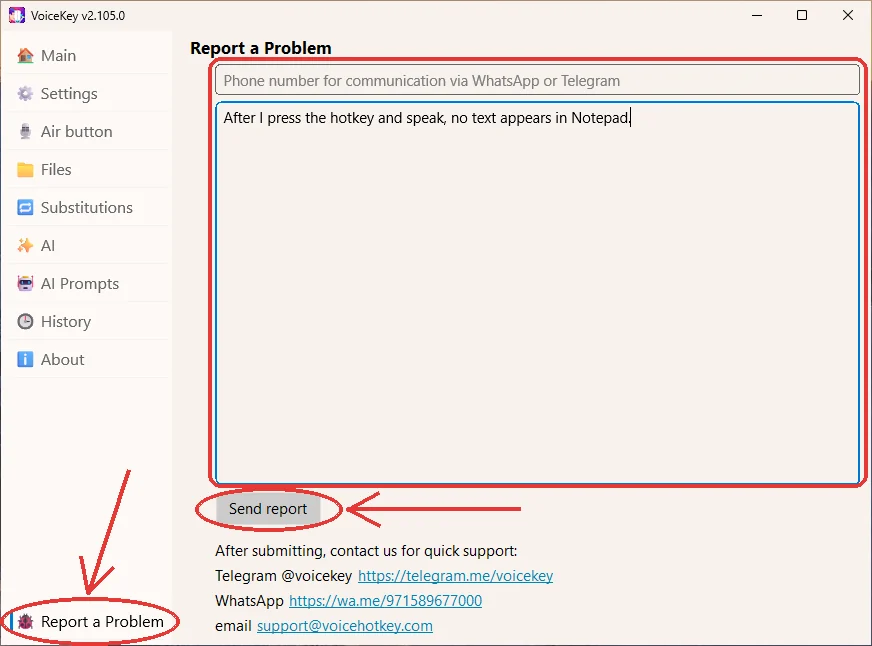
When the app says The report was sent, the report has reached us. If it says Failed to send the report, it also opens a folder with the report file selected: check your Internet connection & click Send report again, or send us that file on Telegram @voicekey.
The report contains your message, your phone number if you entered one, your account email if you’re signed in, the app & Windows versions, the app’s logs & its settings, the list of programs running on your PC, the errors in the Windows Application log from the past 7 days & crash dumps if the app has crashed. Your recordings aren’t attached.
If the app won’t open#
If you can’t get to the report screen, write to ask@voicehotkey.com or message us on WhatsApp. Tell us your device, its system version & what went wrong.


